Zeabur is shutting down. I built a migration planner to help you move.
A walkthrough of the shutdown timeline, service configuration and migration checklist, with real product screenshots and a $25 monthly cost example.
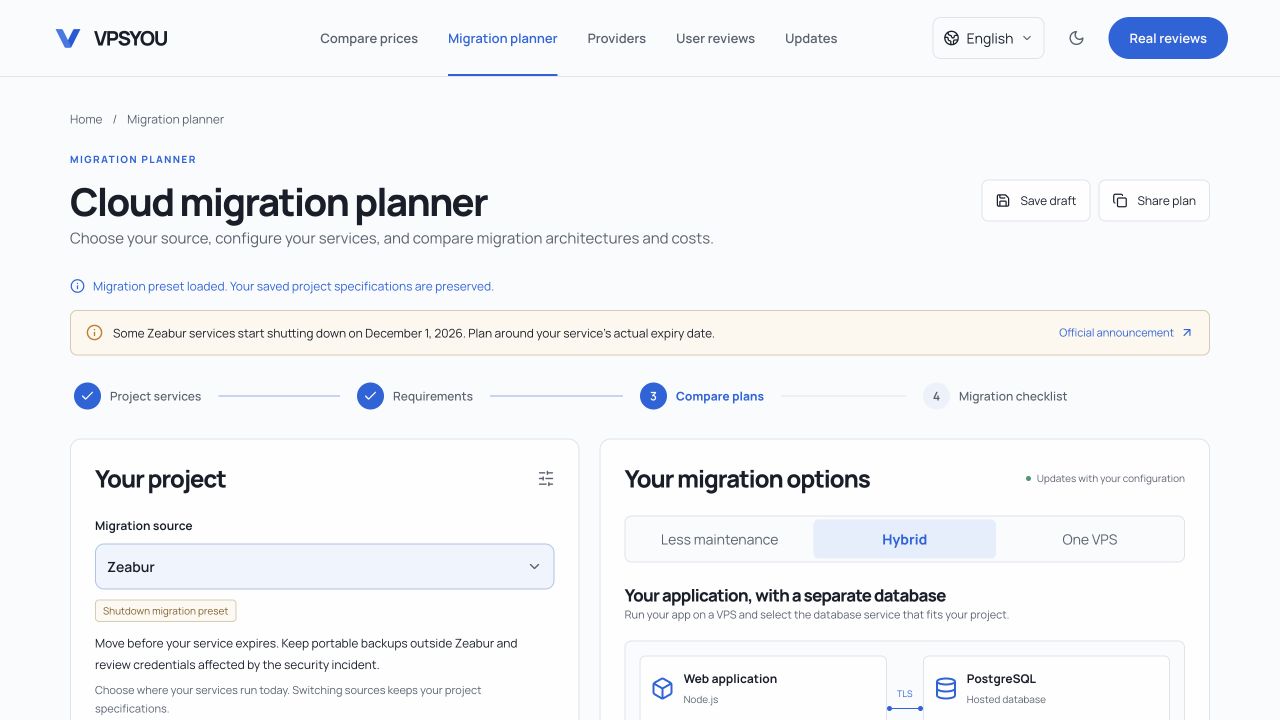
All screenshots show the live tool on October 21, 2026. Select an image to open the original.
If your project still runs on Zeabur, it is time to plan the move.
Zeabur published its shutdown announcement on October 17, 2026. The announcement discusses the recent security incident and sets out the service shutdown schedule:
- From December 1, dedicated server renewals stop. Each server shuts down on its own expiration date.
- From December 1, running services on shared clusters are paused. Users can restart them manually to back up their data.
- On December 31, all dedicated servers and shared clusters stop operating.
Check the expiration date of your own server. December 31 is the final shutdown date; some projects will stop earlier. The announcement has not yet set a data deletion date or final export deadline. If you bought a domain through Zeabur, include the transfer in your plans. Balance refunds and security incident compensation go through Zeabur Support.
Moving means making a few decisions again: where the application will run, how to move the database, where files will live, and what the monthly bill will look like. You also need to review the settings the platform used to handle for you.
I connected VPSYOU's existing product catalog and cost calculator to a configurable migration planner. Enter your current services, compare destinations and costs, then generate a checklist for the move.
Open the Zeabur migration planner. It is currently free to use, with no sign-in or Zeabur account connection required. The planner also supports other sources; Zeabur is the preset used in this walkthrough.
Start with what you run today
Zeabur is selected by default. Your project settings are on the left, with matching deployment options on the right.
For this walkthrough, I used a small Node.js application that needs 1 GB of RAM, PostgreSQL 16 with 10 GB of data, and 5 GB of persistent files. I set a $50 monthly budget, chose “Comfortable with Docker,” and allowed 30 minutes of downtime.
You can change each of those numbers. Select “Edit” beside a service to adjust its runtime, database type, version and resource requirements. Remove the database if your project does not need one. Do the same for persistent files if there are no uploads or other files to keep.
Your budget, target region and operations preference also affect the results. A project you want fully managed needs a different setup from one you are happy to maintain on Linux.
Enter service specifications here. Put actual database connection strings, passwords and keys directly into the destination environment.
Should the app and database share a server?
The planner offers three approaches:
- Less maintenance selects managed application and database products from the catalog. If nothing fits, the page shows that there is no match.
- Hybrid puts the application on a VPS and the database in a separate service. You can choose each destination independently.
- One VPS puts the app, database and files on the same machine. Updates, backups and day-to-day maintenance are your responsibility.
If you want a setup similar to platform hosting, start with Less maintenance. If you can maintain the app but want a provider to manage the database, compare Hybrid options. One VPS combines resource costs, but the app and database also share capacity and a point of failure.
I chose Hybrid for this example, then manually selected Vultr's 2 GB, 1 vCPU plan for the app and AWS Lightsail PostgreSQL 1 GB for the database. Changing either destination recalculates the estimate.
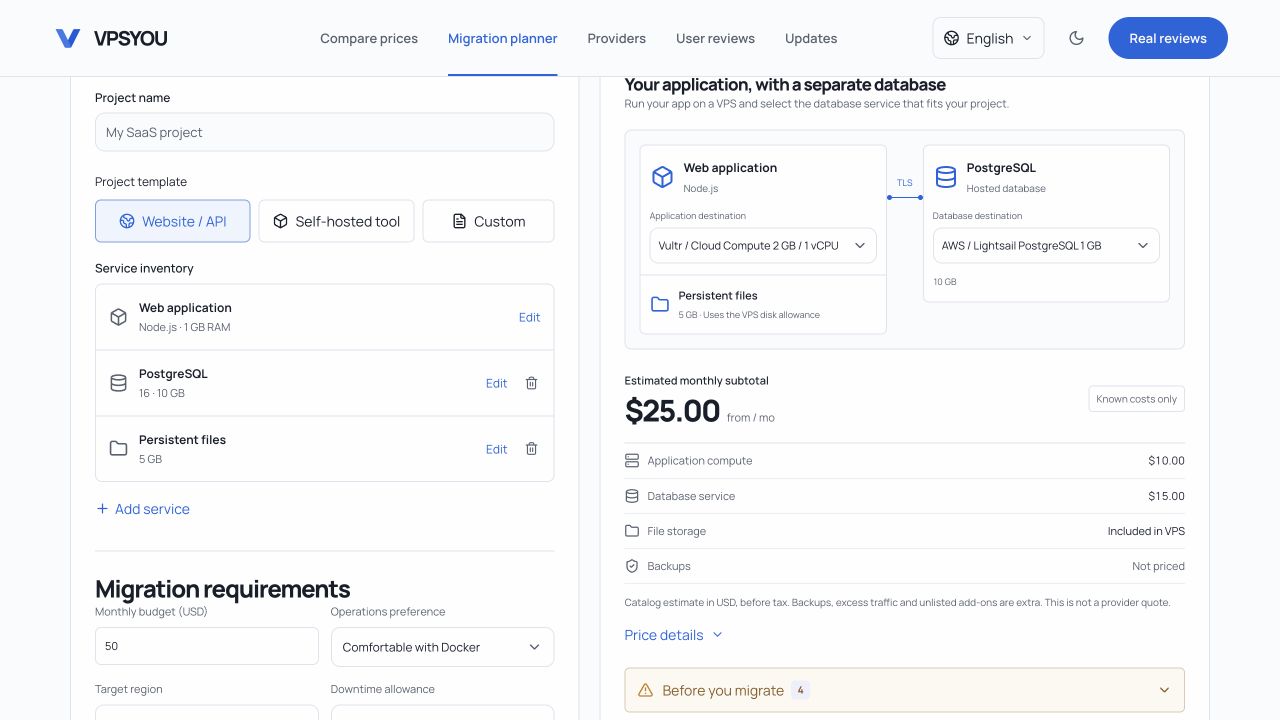
Current services on the left, destination products and costs on the right. I selected this combination manually.
What does this example cost?
The planner itself is currently free. These amounts are the cloud resource budget, paid to the providers when you provision the services.
Using the catalog prices shown in the screenshots:
| Item | Example configuration | Known monthly cost |
|---|---|---|
| Application host | Vultr Cloud Compute, 2 GB / 1 vCPU | $10 |
| Database | AWS Lightsail PostgreSQL, 1 GB | $15 |
| Persistent files | Uses the VPS disk allowance | No separate storage line |
| Backups | Plan and retention period still to be chosen | Not priced |
Known monthly subtotal | $25 | |
The price records in the Vultr catalog entry and Lightsail catalog entry were both checked on October 20, 2026. Confirm the final price on the provider's checkout page.
The estimate is labeled “Known costs only.” Backups, extra snapshots, taxes, excess traffic and the period when both old and new environments run can all add to the bill. For other VPS plans, also check whether public IPv4 costs extra, whether your region has a surcharge, and whether the plan is in stock.
Open “Price details” to see official pricing sources, check dates and plan limitations. The $15 Lightsail database tier in this example does not include encryption at rest or a high-availability standby. If you need either, select a suitable tier and recalculate. See AWS's official pricing.
With the app and database at different providers, check regions, connection options and cross-cloud outbound transfer charges before settling on the combination.
Take the migration steps with you
Once you have chosen a setup, select “Build migration checklist.” The tool uses your configuration to outline backup, preparation, restore, testing, cutover, verification and rollback.
For Zeabur, the checklist includes keeping portable backups outside the platform, replacing internal Zeabur hostnames and injected connection settings, reviewing credentials, and fitting the rollback window before the source service expires. After shutdown, recovery depends on the backups you keep yourself.
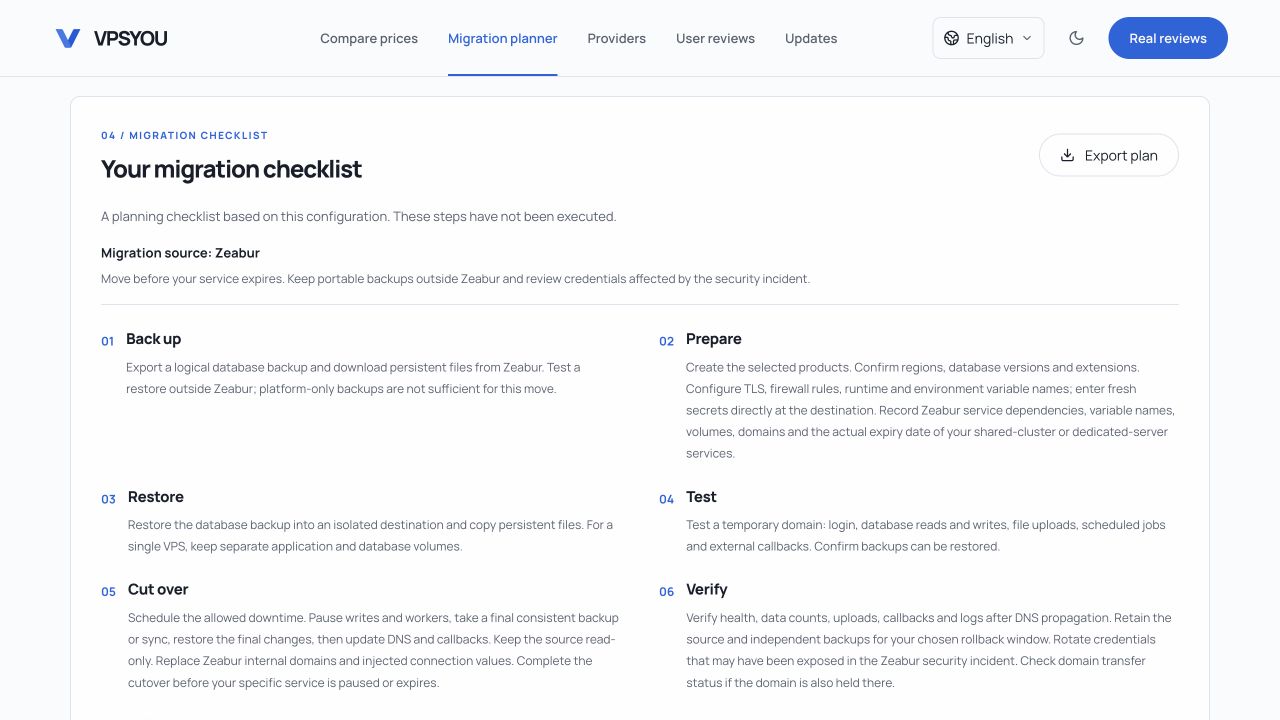
The checklist includes source-specific reminders and links to official documentation.
“Export plan” downloads a Markdown file you can keep in the project repository or share with whoever is helping with the move. If you are still comparing setups, save a draft in the current browser or share a link containing service specifications and product choices. Shared links leave out the project name.
The tool organizes the plan. You still need to export and restore data, run tests and switch traffic yourself. Restore a backup in the destination first, then test login, database reads and writes, and file uploads before scheduling the final move.